Optimize Storage in Microsoft 365
23 July 2025 - ID G00824219 - 12 min read
By Jed Cawthorne, Marko Sillanpaa, and 3 more
Storage space in Microsoft 365 is neither unlimited nor free, and the suite’s complex array of applications and capabilities leaves many organizations uncertain about how to optimize storage use. This research describes how to improve tenant storage monitoring to optimize storage use and reduce costs.
Overview
Key Findings
- Many organizations do not have a full understanding of their Microsoft 365 tenant storage limits and the extent to which different applications and use cases exceed the limits.
- Immature information management and governance controls lead to content sprawl, where redundant and obsolete data accumulates and consumes valuable storage.
- According to the 2025 Gartner Microsoft 365 and Copilot Survey, 67% of respondents felt that content sprawl was among the biggest risks to their organizations’ Microsoft 365 deployments.
Recommendations
- Conduct a thorough audit of your current storage usage across all relevant Microsoft 365 (M365) services, including Teams, OneDrive, SharePoint, Loop and Copilot Pages.
- Analyze audit findings to determine current use-case consumption proportions and storage growth trends.
- Use these insights to determine necessary information governance and storage control adjustments, before deploying new workloads or purchasing additional storage.
Introduction
Microsoft 365 subscriptions do not offer unlimited data storage. For non-education-sector tenants, standard constraints include 1TB per subscription plus 10GB per license, scaling with user count on enterprise plans. While organizations can purchase additional storage, costs vary by M365 subscription type. Active content often costs $0.20 per GB per month, with the M365 Archive tier storage at $0.05 per GB per month. Acquiring more storage can be expensive, making storage management a key cost control activity for digital workplace application leaders.
Individual services within M365 also have specific storage limits. For E3 and E5 licenses, email typically has a 100GB limit; OneDrive defaults range from 1TB to 5TB (expandable to 25TB); and SharePoint offers 1TB plus 10GB per licensed user.1 For non-education-sector tenants, SharePoint (including Loop and Teams channels) contributes to the tenant quota, while OneDrive (including Teams recordings) contributes to the licensed user quota. Many applications, such as OneDrive and Teams, utilize SharePoint libraries for back-end storage.
Consequently, files shared through Teams, Loop pages, Copilot Pages, Teams meeting recordings in OneDrive, Clipchamp projects, and documents attached to Copilot Chat prompts all consume the tenant’s allocated storage.
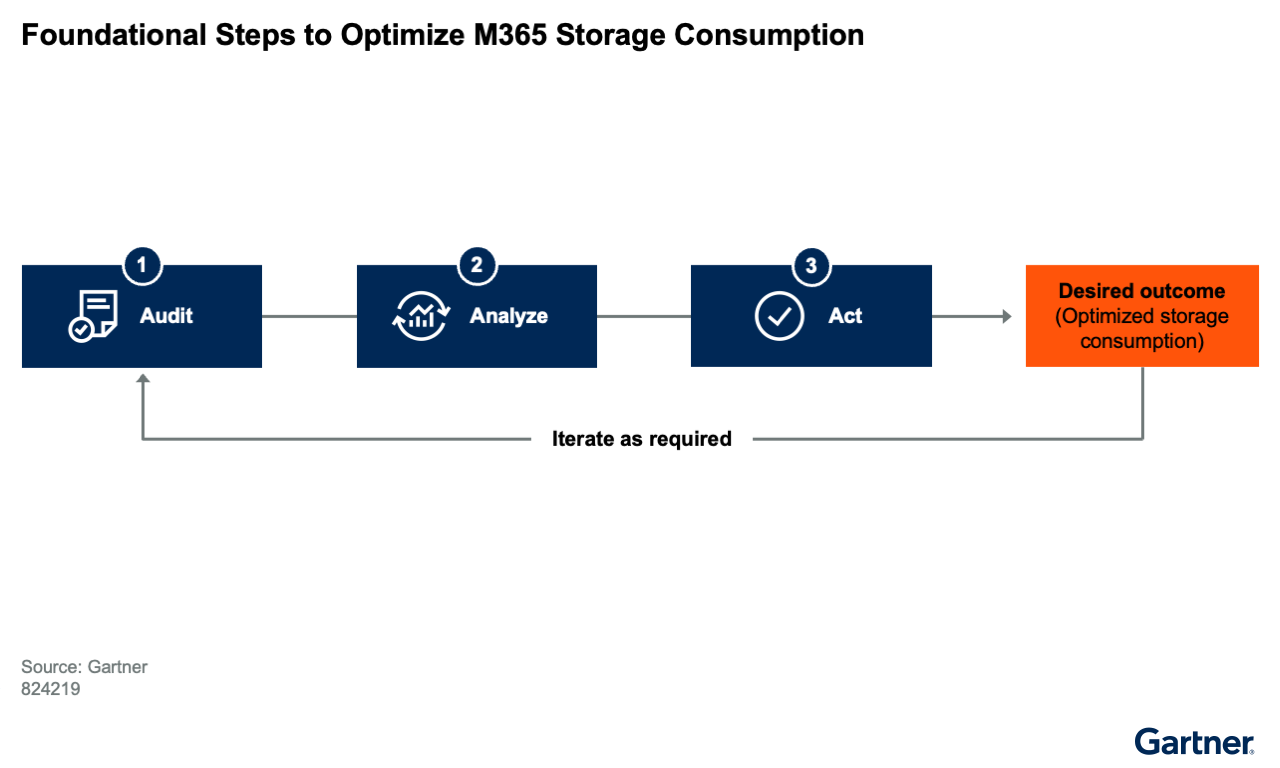
To optimize M365 tenant storage and avoid unnecessary overage costs, digital workplace application leaders should regularly audit storage. They should also analyze use-case reviews to identify trends that necessitate adjustment actions to the organization’s storage management strategy (see Figure 1).
Analysis
Audit Storage Usage
Understanding your M365 subscription’s tenant limits and the cost of additional storage requires a holistic view of data consumption. Built-in administrative tools are a good starting point for this overview.
The M365 admin portal has a usage page under the reports heading. Regularly collect and track data from storage reports for:
- Mailboxes
- OneDrive
- SharePoint
- Active user volume for adding files and consuming storage
Export this data as .csv files for further analysis in Excel or Power BI. These reports cover only the past 180 days, so download these reports regularly to build a baseline and to identify usage trends. Then, from the SharePoint admin center, you can generate reports on:
- SharePoint sites, ranked by storage usage
- Containers for SharePoint Embedded instances
- Unlicensed users’ OneDrive usage
The Microsoft Graph Data Connect for SharePoint also offers an additional analysis option through datasets covering security, capacity and sync health. Users can connect and run their own analytics, using tools like Power BI or Azure Synapse Analytics.2
SharePoint Embedded (SPE): This is a headless version of SharePoint delivered as an Azure service for developers to build custom applications. Apps built on this platform consume additional storage directly via SPE pay-as-you-go usage meters.
As of January 2025, OneDrive storage is no longer free for unlicensed accounts. Unlicensed accounts under retention, or subject to legal holds, will be automatically archived 93 days after license removal. Archived unlicensed OneDrive accounts will incur charges for both monthly storage and ad hoc account reactivation. Download the unlicensed user report as a .csv file for offline analysis. Incorporate regular use of this report into M365 administration policy and procedures to prevent unnecessary storage spending.3
SharePoint Premium offers additional reporting through SharePoint Advanced Management (SAM). Microsoft 365’s underlying architecture uses SharePoint to store files from Teams, OneDrive, and componentized content in Loop and Copilot Pages. Therefore, SAM’s features focus on SharePoint sites, providing controls for:
- Mitigating content sprawl
- Managing content life cycle
- Preventing oversharing
- Managing Copilot’s access to content
SAM helps gain a complete understanding of overall storage consumption through featured reports and automated policies, including:
- Automated policies: Site ownership policies and inactive site policies (rule-based management for inactive sites).
- Reporting and insights: AI insights (extracts patterns and suggests remedial actions); site change history reports (past 180 days); recent site action policy (last 30 changes); and site access reviews (delegated to site owners for oversharing concerns).
SAM is a per-user license, but as of early 2025, it is also bundled as part of the Microsoft 365 Copilot license. However, future SAM features may not be included in the Copilot license.4
Third-party software vendors offer enhanced tooling with more-fine-grained reporting. These tools allow setting thresholds, trigger values and alerts to inform admins, improving digital workplace application leaders’ situational awareness. Vendors include AvePoint, CoreView, Orchestry and Syskit Point.
For email, review the percentage of your total users reaching the limit of their inboxes. For those users who have reached their limits, consider the use of In-Place Archive. It creates a secondary mailbox with more storage (100GB, which can be extended up to 1.5TB).5
Analyze Use Cases
Your current storage usage audit produces data — in Excel files or loaded into tools like Power BI — that inventories use cases driving shared storage consumption. Analyze the proportions of email, OneDrive and SharePoint storage use, along with each application’s data growth rate. This analysis establishes a basis for immediate storage management and future planning.
For example, deploying Microsoft 365 Copilot now includes Copilot Pages, a capability to turn responses into a durable collaboration asset. The objects in these pages are based on Microsoft Loop and use the common pool of tenant storage.
The impact of use cases on storage can vary, based on industry-specific business and regulatory environments. For instance, defensible disposition policies set via Microsoft Purview can automatically delete emails and attachments after three months, freeing up storage. Conversely, business requirements for long-term trend data might lead to files being continually added to some SharePoint sites without removal. Furthermore, examine OneDrive’s use for internal and external sharing, not just as a cloud-based My Documents.
An organization’s information governance maturity influences how unstructured content is managed across widely used M365 applications (see The Information Governance Maturity Model). Without established information governance policies and best practices, significant storage space is consumed by common oversights, such as:
- Email attachments that require recipients to download and store document copies, rather than shared links
- Redundant documents that are stored in multiple locations (for example, OneDrive, Teams and SharePoint sites)
In SharePoint Online, version control in document libraries is enabled, and set to 500 versions by default, as co-authoring features rely on versioning. While 500 versions of a 250KB Excel file, or 800KB Word document will not be of concern, this will be different if the average file size is much larger. Assess your requirements for, and use of versioning, and reduce the number of versions kept to reduce storage use.
500 versions of a 350MB PDF file can have significant storage costs.
There are many options for managing versions, such as selecting to expire versions after a certain time period (for example, six months). Review the Microsoft documentation to ensure you are selecting the version control options that meet your business and storage management needs.6
Analyze the full content life cycle within the tenant, considering if M365 is the correct storage location. For example, if line-of-business processes are served by a third-party document management system, do documents need to be stored in SharePoint Online?
Content life cycle stage is another key consideration. Keep operational content, which is regularly updated or frequently accessed, available to M365 users through integrated storage for optimal performance. For older data that must be retained for business or regulatory reasons but is no longer updated or rarely accessed, consider archiving it using M365 Archive or moving it to cheaper storage locations outside the tenant.
More-sophisticated analysis may require third-party tools to identify redundant, obsolete or trivial (ROT) data files; data that has passed its retention period; or duplicate files. Third-party options also offer information life cycle and records management functionality beyond what Microsoft Purview provides.
Perform These Actions Before Deploying New Workloads or Additional Storage
Based on current tenant storage usage, estimate the required storage for additional business use cases that will be deployed on your M365 environment. For example, deploying Microsoft Purview for records management or Microsoft Loop for enterprise collaboration will introduce new workloads that consume space from the same storage pool. Seek advice from Microsoft on the estimated storage use for any additional workloads before deployment.
Partner with business units to understand the M365 use cases enabling their business processes. Investigate the potential impact on storage requirements and existing business unit policies and procedures for storage management. For instance, ensure end users are trained in SharePoint version control to understand the implications of retaining multiple versions of large files.
Utilize Content Analytics
Generating more data on M365 use cases and storage makes it easier to understand which use cases drive consumption. This insight helps determine if usage can be constrained or if additional storage is necessary. Live dashboards and regular reports from Microsoft’s admin tools or third-party vendors provide continuous understanding of trends and enable forecasting.
Schedule Regular Reviews and Adjustments
Operationalize audits as a regular and ongoing part of your information governance initiative. This creates opportunities to remove ROT data and reduce storage use. It includes ongoing data life cycle management using Microsoft Purview or third-party tools, and considering archiving to alternative storage locations.
SAM reports are especially useful for initial audits and continuous monitoring. They offer insights into inactive or orphaned sites that can be deleted or archived.
For email, organizations can create policies to move messages past a specified age to the In-Place Archive, preventing the primary inbox from constantly reaching its storage limit. While useful for legal and regulatory compliance, organizations should also consider autodeleting emails within defensible disposition guidelines. Additionally, training and education on email “good housekeeping” can help manage primary inbox storage.
Evaluate Alternative Storage Solutions
Based on your audit and analysis, determine if some content can move to more-cost-effective alternatives. Options include Microsoft Azure Blob Storage, Azure Files or the M365 Archive product. Note that M365 Archive’s first release allows archiving only entire SharePoint sites; however, users should anticipate greater flexibility in future releases (see Table 1).
Alternative M365 Storage Options
M365 Archive | Azure Files | Azure Blob Storage |
|
|
|
Publicly available information from Microsoft product websites | ||
Source: Gartner (July 2025)
M365 Archive offers advantages with deep integration into both Microsoft Search and Purview information life cycle management. Azure Files can also integrate into search via a connector. However, extending Purview capabilities to network or cloud file shares requires a third-party vendor like AvePoint or Infotechtion. Finally, Azure Blob Storage can be searched using Azure AI Search, but this requires a separate client UI and cannot integrate directly into the M365 search experience.
Pricing models for Azure Blob Storage cool, cold or archive tiers are volume-based and charge a premium for rehydrating files. Azure Files offer Premium (low-latency SSDs) or Standard (HDDs) tiers, with pay-as-you-go or provisioned storage models.
This research was informed by analyst interactions with Gartner clients, briefings with vendors providing content management and governance capabilities, and publicly available information about product releases and capabilities.
This research was also informed by survey findings discussed in Key Insights From the 2025 Microsoft 365 Copilot Survey. 2025 Gartner Microsoft 365 and Copilot Survey. This survey was conducted online from 10 March through 1 April 2025 to understand how organizations are governing, using and supporting Microsoft 365. It also aimed to determine the adoption and utilization of Microsoft 365 Copilot and its impact on the standing of Microsoft 365 in the organization. A total of 215 IT and CSS leaders influencing or making decisions around Microsoft 365 participated. One hundred seventy-seven completed the survey — 112 from Gartner’s Research Circle (a Gartner-managed panel) and 65 contacted through the dissemination of the survey link via Gartner conferences and outreach to clients. Respondents who disclosed their locations were in North America (n = 96), EMEA (n = 75), Asia/Pacific (n = 9) and Latin America (n = 8); 27 respondents did not indicate their locations. Disclaimer: The results of this poll do not represent global findings or the market as a whole, but reflect the sentiments of the respondents and companies polled.
1 Microsoft 365 SharePoint Online Service Limits Microsoft
2 Overview of Microsoft Graph Data Connect, Microsoft.
3 Manage Unlicensed OneDrive User Accounts, Microsoft.
4 SharePoint Advanced Management Overview, Microsoft.
5 Learn About Archive Mailboxes, Microsoft.